DATEPART(‘dayofyear’,DATE(“12/31/”+DATENAME(‘year’,[Order Date])))
Showing posts with label Tableau Desktop. Show all posts
Showing posts with label Tableau Desktop. Show all posts
Friday, 27 November 2015

Average of Last Day, Week, Month, quarter formula
Past day:
zn(LOOKUP(AVG(IF [Date] >= ([End Date] -1) then [Sales] END),0))
Past month:
zn(LOOKUP(AVG(IF [Date] >= ([End Date] -30) then [Sales] END),0))
Past Week:
zn(LOOKUP(AVG(IF [Date] >= ([End Date] -7) then [Sales] END),0))
90 days avg:
IF [Date] >= ([End Date] -90) then [Sales] END
End date is a parameter and Date is coming from the source like Order date in Sample Superstore.
Thursday, 15 October 2015
Previous Year YTD formula
if [Order Date] <= [date]-365
and DATEPART('year',DATEADD('month',12,[Order Date])) = DATEPART('year',DATEADD('month',12,[date]-365))
then [Sales]
end
Date is the parameter here..
Option 2:
sum(if year([Order Date]) = year([date])-1 and
[Order Date] <= dateadd('year',-1,[date]) then [Sales] END)
Thursday, 10 September 2015
YTD Formula
Option 1:
ifdatediff('year', [Order Date], [date]) =0 and
month([Order Date]) <= month([date]) and
date( [Order Date]) <= date([date]) then [Sales]
end
Here date is the parameter
Option 2:
if [Order Date] <= [date]
and DATEPART('year',DATEADD('month',12,[Order Date])) = DATEPART('year',DATEADD('month',12,[date]))
then [Sales]
end
Option 3:
sum(if year([Order Date]) = year([dateinput]) and [Order Date] <= [date] then [Sales] END)
Wednesday, 12 August 2015
Color formatting along with text , color , KPI and shape for more than one measure
Say you have 7 or more measures and you need to show the KPI indicators along with the text values. This is a kind of challenge we faced
In order to successfully implement this scenario.
Here are the steps we followed in order to achieve it. We chose Dual axis method for this scenario.
For the time being i am showing it for one measure, you can do it for all of them in the same way.
1. Create two calculated fields name it as ‘Color’ and ‘Color text’ respectively with value as 1.
2. Drag Color and Color text fields to Column shelf
3. By default it will be aggregated as SUM. So, Change it to Attribute.
4. Right Click on Color Text and make it as Dual Axis.(if you want you can also chose the shapes instead of the default Abc text.
5. Now Create one more calculated field say KPI-Sales to define the KPI values for each measure.(Green > 50k, Red <10k, Yellow <30, like that).
6. When you see marks shelf you will notice the columns ATTR(Color) and ATTR(Color text).
7. Click on the Color Text
8. Drag the calculated field KPI-Sales to the color shelf and assign/map the colors
accordingly.
9. Drag the measure (Sales) to the label shelf.
10. You will be able to see the Color and text for the Measure in your view.
11. Now you need to do the formatting of the name, fonts, column colors etc..
12. That’s all guys ..
Enjoy :)
Friday, 17 July 2015
How to set the filter value default to none ..
Sometimes we may have a requirement to show the blank sheet in the dashboard.
User will have to give the inputs in the filter and then accordingly display the reports in the dashboard.
These are the steps you need to follow..
These are the steps you need to follow..
1.Click on the filter
2.select customize
3.deselect the show ALL option
4.change the filter to single drop down mode
5.you will see the default value present in the filter
6.Now Edit the filter
7. In the general tab you see all the values
8.you will also see ALL , NONE tabs..
9.click on None tab and
10.click on OK
11.Now your filter shows the default value as None.
Enjoy..:)
Tuesday, 7 July 2015


Sunday, 5 July 2015
Important notes in Tableau Desktop
Important notes in Tableau Desktop
- Multidimensional data sources do not support aggregations and binned data.
- Multidimensional data sources supports only in windows.
- You can use tableau to aggregate measures only with relational data sources, multidimensional data sources contain aggregated data only.
- Null values are ignored in median, count, sum, avg and countD.
- Median does not work on live connection.
- Median was not there before 8.2 version.
- Percentile required extract data. Percentile works with only extracts.
- When all measures are disaggregated you see a mark for each row in the view, you can't select marks to keep only, exclude or create a set when all measures are disaggregated.
- A dimension can be aggregated as a measure using minimum, maximum, count and count (distinct)
- Count (Distinct) is not support for Microsoft Access, Microsoft Excel and text files data sources. These data sources requires extract to work with CountD
- Dis-aggregating the data can result in a performance degradation.
- When you are writing formulas, any part that displays in bold indicates that it will be computed locally with in tableau on the aggregated results. Any normal weight text will be computed at the database level.
- Functions are displayed in Blue color while creating calculation field.
- Data window fields are displayed in Orange color while creating calculation field.
- Operators are displayed as Blank color while creating calculation field.
- Parameters are displayed as Purple color while creating calculation field.
- Comments are colored as Green color while creating calculation field.
- Grand Totals cannot be applied to continuous dimensions.
- The view must have at least one header to apply Grand Totals.
- If row headers are displayed you can calculate Grand Total for row, If column headers are displayed you can calculate Grand Total for column.
- Forecasting is not supported for multidimensional data sources.
- Forecasting doesn’t work if the view contains:(a) Table calculations(b) Disaggregated measures(c) Percent calculations(d) Grand Totals or Sub Totals(e) Date values with aggregation set to exact date(f) A time series contains null values also imposes constraints.
- The smaller the p-value, the more significant the model.
- If your data contains negative values tableau cannot plot them on a logarithmic scale. All values with a negative value will be displayed at 1 on the axis.
- The pattern match is not case sensitive in filters wild card match.
- If we are using multidimensional data source wild card match option is only available when filtering single level hierarchies and attributes.
- Filters cannot be applied across multiple data sources.
- In previous versions of tableau desktop, the All using this data source option was called make global and the only this worksheet option was make local.
- Sorted fields are identified by a sort icon on the right side of the field.
- You cannot nest inner joins within left or right joins. These joins will cause a "join expression not supported" error.
Source : Suresh Reddy NallapaReddy
Monday, 29 June 2015
Some Findings While Working on Tableau
Observations
- More than 16 dimensions is not possible in table layout
- Side by side bar with line chart is not possible
- Exporting all dashboards or all sheets in a single dashboard in to single excel file is not possible
- When title as header session it is not showing all values as list, it is showing it as 5 more
- There is no multiple selection in parameters
- If we use data base column in parameters list that list is not refreshing dynamically.
- Dynamic pagination is not there.
- Session is not there (like SAP BO)
- Automatic text wrapping is not there
- Selected prompt values deselecting multiple values is not there like other reporting tools.
- Sort icon is not working as other reporting tools
- Tableau taking much time to sort the filter values.
- CountD, Median, percentile functions does not work when we use data blending.
- Adding subtotals and totals is not possible when we add measures in between dimension columns in discrete mode.
- In cross tab report Coloring to entire row based on KPI is not possible in tableau
- Zero value issues in Pie, Bar chart and Bubble chart with Marks labels
Source : Suresh Reddy Nallapa Reddy
Thursday, 16 April 2015
New user interface enhancements in Tableau Desktop 9
A lot of us are playing around with the new features and are already benefitting from the advancements they bring. Today, I’m kicking off this blog series with a look at the user interface changes and improvements.
 Click the image to view bigger.
This is one of my longer blogs so I’ve added this contents so that you can jump to what you are interested in, otherwise please keep reading.
Home Screen
Connect To Data Screen
General Navigation Changes
Maps
Tooltips
In-line Editing
Calculated Field Editor
Analytics Panel
Story Points
And One More Thing…
Connect To Data Screen
General Navigation Changes
Maps
Tooltips
In-line Editing
Calculated Field Editor
Analytics Panel
Story Points
And One More Thing…
If you’ve had the opportunity to download Tableau v9 Beta 2, you’ll no doubt have realised that it’s pretty great. For all those who haven’t, get involved and start downloading!
In Tableau Desktop 9, there are some fantastic UI improvements that Tableau have made. The majority of it is increasing the usage of drag-and-drop and buttons rather than menus. This is a testament to the way Tableau listens to their customer base and makes the best decisions in each release. So, keep reading to find out some of the look and feel of Tableau v9 (Note: It’s a beta, and things may change before release).
New Home Screen
It’s got a lovely, blue, fresh design, incorporating the Home screen from previous versions with the Connect to Data screen.

You will also notice the “Sheet, Thumbs, Data, Home” buttons have been removed and a new “Tableau Logo” button added to the top-left.

Click this and it flicks between the new Home screen and your last-used worksheet. On this new Home screen, you can Connect to Data, View Server Workbooks, Discover community workbooks and view the “Viz of the Day” from Tableau’s website. It’s a great change as, in my opinion, it simplifies the workflow.
The thumbnail view button now has a new home in the bottom-right of the Tableau app. Its size and position, I guess, denotes it importance. However, it’s still useful.
New connectors that I’ve spotted are SPSS .sav, SAS .sas7bdat, R .rda and R .rdata, MonetDB and SparkSQL. I’ll be blogging about the R connectors very soon, as it’ll be great to have an R script pulling data from Twitter, analysing it and then visualising in Tableau!
Connect to Data Screen
The “Go To Worksheet” button has disappeared!

But, you can relax. Tableau decided it was redundant, and you now use the sheet navigator at the bottom of the screen to go to a sheet. I personally prefer its simplification of the interface, as previous versions had too many ways to do something.

A new “Manage metadata” button has also been added. This opens a view of the fields/columns in your data, allowing you to rename, describe and change aliases in the data and split the data in a column. This feature is a great new addition for shaping your data in Tableau rather than an external app.

Split function: This gives you the ability to split a field/column into separate fields/columns based on a separator. For example, I have an ID field in a database that is stored “#01-16845”. The key of the row is really the 16845. So, let’s say I want to split the field on “-”. I can do this now with the Split function, giving me a new column containing “16845”. We’ll be talking more about these new data shaping tools (Split and Pivot) in a following blog, so keep an eye on the blog for updates.
Show Aliases button: If you’ve set any aliases against your data, you can switch them on and off in the data to check the underlying data – useful.
General Navigation
I’ve already mentioned the new position for the Thumbnails view button in the bottom-right and the removal of the navigation buttons in the top right, and you’ll see by doing that the workspace is that little bit bigger. In the end, the data is the star, and the user interface should blend into the background. I feel it does.
I’m loving the new “Tableau Logo” Home button, so I’ve just mentioned it again ;).
Data Source button: This is a shortcut for the old “right-click on the data source and then click Edit Data Source”, it’s another improvement to the workflow that potentially reduces the number of clicks to do things.
“Hide all sheets”. Yay!!! This one is in the right-click menu of a dashboard tab, and it does what it says on the tin – hides all the sheets used in that dashboard. There’s an Unhide all sheets too.

Sheet preview when building dashboards, hover over the sheet in the left navigator and Tableau now displays a thumbnail of the sheet. Great for finding those cryptically named sheets. (Sheet 1, Sheet 2 etc. all you non-namers.)
What’s that new icon on the right of the sheet tabs I hear you ask?!.

It’s the new “New Story” button. Again, one less click and less use of menus. This lower dependence on menus is great in OSX as the menu bar is always at the top of the screen rather than attached to the window as in Windows.
Maps
A few new features here; and the “Tableau Classic” map has been removed from the Map Options. Out with the old altogether.
Hover over the map and the map toolbar is shown, the first button is a search tool allowing you to search for geographic locations around the globe.
Lasso tools have been improved in maps, there is now a circular and freeform polygon tool to select marks on a map.
Tooltips
Responsive tooltips: They appear as you move the mouse around marks. It looks and feels much quicker as there’s no need to hover over a mark, then wait and then read the tooltip. You can still choose the hover tooltips, though. The command buttons are hidden when using responsive and only appear when clicking on the mark –
makes the interface cleaner.

“Show Tooltips” button: This removes the need to delete the contents of a tooltip just to switch it off. A far more explicit and understandable method.

In-line Editing
We’ll be telling you more about this in a further blog; however, this is a lovely method for creating calculations on the sheet. You can even create a calculation on a sheet and not have it appear in the dimensions and measures, keeping your metadata tidy. Then, when you’ve tested it, you can easily create a dimension or measure from it by dragging it to the Metadata window.

The in-line editing works on columns, rows and marks at present. Let’s hope Tableau add it to the Filters and Pages shelf soon.
Calculated Field Editor
This one looks completely new with a flat, clean design, and the best bit is that it takes up far less space making the viz visible below. Hey, Tableau, how about a semi-transparent window ….
You’ll notice the help windows for functions, etc. have gone. Well, they’re now available by clicking the arrow button on the right of the window.

Code completion: This is great for those of you who code in IDEs (well, great for everyone really). Start typing into the window and Tableau suggests items you can add. So, start with “[S”, and a list of dimensions and measures is shown, named with the first letter S from all data sources. Arrow key down to the one you want and hit Tab. Voila! Code completed!
Cancel button is now an X in the top right.
Analytics Panel
Next to the “Data Window” button is a new “Analytics” button. Click this, and you get a new view with various analytic functions available for drag and drop. Click the one you want, and drag it to the view. When you drag it over, a new Scope window appears. Drag it to “Table, Pane or Cell” to set the scope. Far, far better than digging around in Windows and Menus.

Story Points
The interface works as before; however, you can now resize the grey navigation boxes at the top. It makes the interface cleaner. I quite like just having 1, 2, 3 for each of the points and a description to go with each one. Tableau, can we justify the navigation buttons left, center and right rather than them being stuck in the middle?

And One More Thing …(this one’s a bit geeky)
The grey used in various places is lighter. It was RGB 231,231,231 but is now 242,242,242. Makes everything feel like a lighter and happier place to be :).
So, there we have it. Tableau v9 is a great improvement from a user interface point of view. There is lots more to learn under the hood, but that’s for another blog post. Keep an eye out for the rest of our blog series for more info on Tableau Desktop and Tableau Server v9.
Source : Interworks
What is new in Tableau 9.0 version
Firstly, for all those still on Windows Server 2003 (you know who you are), it’s time to finally upgrade as Tableau Server 9.0 won’t run on this OS.
New User Interface
The first thing that you will notice when connecting to the Tableau 9.0 server is the new user interface. The login screen now has a clean minimal new look

and the overall user experience has been completely redesigned with a new sleek black theme to it, at a glance looking like the InterWorks site ;).

Instead of having to page through your Workbooks (or your Views, etc) they are now all on the same page, with infinite scrolling.
Also, searching has been improved with the facility to search all projects, workbooks, views or data sources in one filter.

All of these design changes are also reflected in the Administrator View.
Security Permissioning
User and Group Permissioning has been improved with a new layout which makes changing permissions easier to understand. You can now instantly see the effects of changing group permissions, and what rights the individual users have.

Command Line
For all you scripters out there, Tabcmd is now more responsive for faster batch line programming. The REST API has also been expanded with a number of new functions.
High Availability
Cluster management has improved greatly, so that now you can manage and control fail-overs, and set preferred hosts. This is great news for all those who were frustrated with the rudimentary nature of the previous version.
Also, the restrictions on the number of data engine nodes in a cluster and which were passive has been removed, with all data engine nodes now being active, resulting in the cluster being more scalable.
Performance Enhancements
All the above points are great, but let’s now dive into the most important improvements, and enhancements that I’m most excited about. These are all about performance. Having Dashboards that render quickly is key for Tableau Server.
The improvements break down into two main areas:
Getting more out of the Server processor cores by;
- Running multiple queries in parallel on Dashboards, instead of sequentially.
- Rewriting the underlying code to take advantage of modern CPU design and architecture.
- Using multiple processor cores for tasks to return results more quickly.
Getting more out of the Server Cache by;
- Saving and reusing query results for Tableau Extracts, instead of re-running each time a workbook is opened.
- Recognising related queries in a Dashboard, and optimising the query execution order to increase the number of time cache is being used.
- Creating ‘shadow’ extracts of Text and Excel Data sources, so that they are optimised.
So, all in all, a number of excellent improvements from Tableau with this new release. There is so much more to go into, but I’ll leave this for another blog. But, what are your thoughts on 9.0’s Server enhancements? Let us know in the comments section as we’d love to hear your views. If you have any questions, please feel free to send me an email or, if you’re ready to download Tableau, click here to get started on a free 14 day trial.
Source : INTERWORKS Blog
Source : INTERWORKS Blog
Wednesday, 15 April 2015
How to make Donut charts in Tableau
When used properly, donut charts can be an effective way to communicate comparisons in a unique way. When used improperly, they are the butt of jokes mentioned in the same vein as pie charts. In fact, donut charts are essentially pie charts with a circle in the middle, and in our data visualization tips series, I explain why you shouldn’t use pie charts.
So what’s the difference with donut charts?
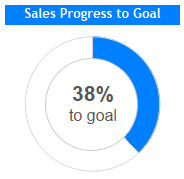
One of my recommendations for practitioners that cannot quite let go of pie charts is to use five slices or less. Personally, I would not use more than two. When used for the specific purpose of showing a metric’s progress to goal, with one “slice” being the current state of the KPI and one “slice” being the remainder to goal, I think a donut chart works well.
I admit, a bullet graph would be the most efficient way to communicate the progress to goal scenario above. In other words, a bullet graph would be processed faster by end users than a donut chart and also take up less real estate on a dashboard. If you think a bullet graph may be a more appropriate choice for your data visualization, see How to Make Bullet Graphs in Tableau.
That being said, I don’t mind the extra real estate that a donut chart takes up because that space can be used to provide additional context in a visually appealing way. For example, you can place an icon that denotes what the donut chart applies to or a callout number that shows the percent your KPI has progressed to goal. Donut charts are an acceptable alternative chart type that can make your data visualization stand out. For more on making your work ‘remarkable’, see tip twelve in our Data-Driven Storytelling series, Balance Data and Design.
Looking to maximize the return on your company’s investment in Tableau? Learn about our Tableau TrainingW TO MAKE DONUT CHARTS IN TABLEAU
Step 1
For the purposes of this exercise, we will make a gauge showing how our sales are progressing towards goal. I am using the Superstore sample data in Tableau. This data already contains a measure for ‘Sales’, but we will need to create one more field that calculates the sales goal minus the actual sales. The data you are working with may contain a measure for ‘Sales Goal’, but I am going to hard code a goal of $80,000,000 into my calculated field: $80,000,000 – SUM([Sales]).
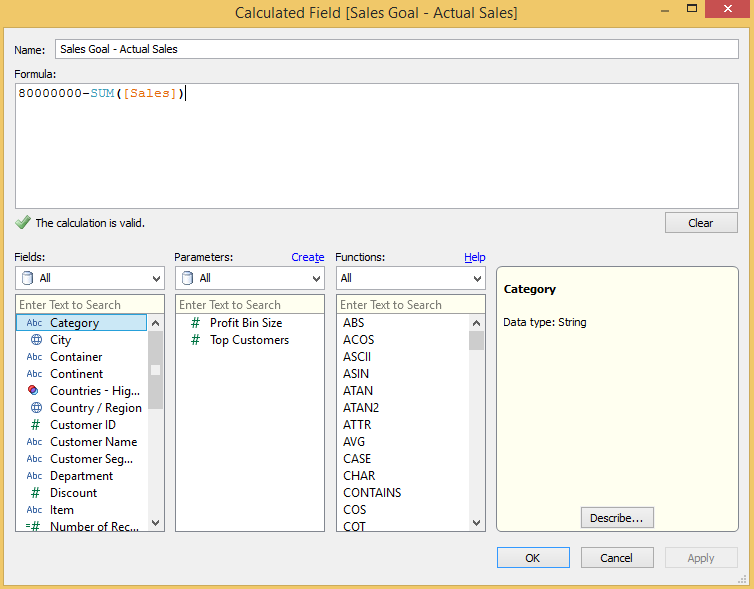
The reason we make this calculated field is so the two slices in our donut chart will always add up to the total goal, and actual sales will always by a correctly sized portion of the total goal.
Step 2
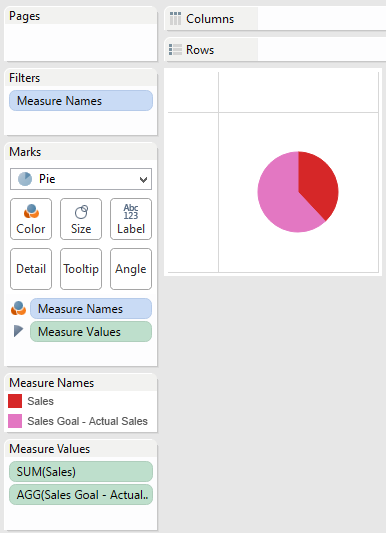
You will now create a pie chart using two measures: ‘Sales’ and the newly created ‘Sales Goal – Actual Sales’. Do this by first changing the mark type on your view to Pie. Now place ‘Measure Names’ on the Colors marks card and ‘Measure Values’ on the Angle marks card. Finally, filter the view on ‘Measure Names’ to only include ‘Sales’ and ‘Sales Goal – Actual Sales’. At this point, your view should look like this:
Step 3
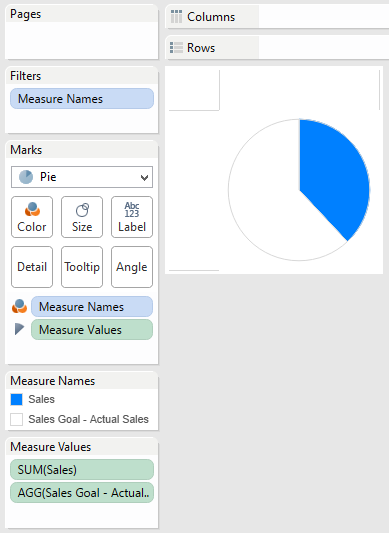
Format the donut chart (currently a pie) by increasing the size, adding a border, and most importantly: coloring the ‘Sales’ measure to a color of your choice and the ‘Sales Goal – Actual Sales’ measure white. This will eventually create the filling gauge effect we are going for.
Step 4
The final step in creating a true donut chart is to add your chart to a dashboard and float a circle with a transparent background over your pie chart. It is very important that you use a .png file so that your corners are clear and you will be able to see the underlying chart.
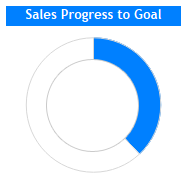
Feel free to use this .png file for your inner circle if you don’t already have one.

Finally, I mentioned earlier that I don’t mind donut charts because the real estate available in the inner circle can be used to communicate additional context either through icons or text. In this case, I may make a calculated field to determine the percentage of our sales goal we have obtained. This calculation can then be used to create a text sheet that can be floated over the donut chart to finalize the view.
Final Product
Source:

Subscribe to:
Posts (Atom)